How to remove the featured images from the subpages under a grid page, on the Motif theme for WordPress.com

Ok so you’ve created a grid page by creating subpages with titles, excerpts and featured images. The trouble is those featured images also appear on the subpages themselves — probably not what you want.

Well you can remove them with some simple CSS. You’ll need the Custom Design upgrade for this, but you can try it out first by going to Appearance > Custom Design > Preview for free (in the CSS box). Then in the CSS input box, paste in this code…

.page-child .attachment-motif-page-thumbnail {display: none;}

Before this code was provided by WordPress.com, I’d worked out this (slightly less elegant) way of achieving the same result. So if for any reason the above code doesn’t work for you, give this a try instead…

.entry-thumbnail {display: none;}
.grid-row .entry-thumbnail {display: inherit;}

Let me know how you get on :-)

All the best,
James
How to show only the first part of a post on your blog page

Ragini asks…

“Really appreciate your post on how to set up motif for WordPress. But our blog page isn’t truncating the posts, it’s showing the whole posts. After reading all the directions neither of us could find any place other than under Settings > Reading, but there seems to be no setting for truncating the posts. Just wondering what we are missing!”

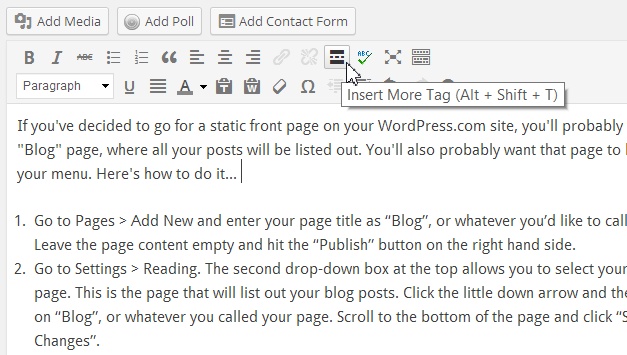
It was a good idea to look in the Settings but in fact, this is done on the Edit Post page. Place the cursor where you want the post to be truncated and then click on the little “Insert More Tag” icon. You should get a line appear across the editor, to show that this is the cut-off point…

When you save the post and then view your Blog page, the post you edited should have a “Continue reading →” link at the correct point.

Because it’s done on a post-by-post basis, you can “cut off” each post wherever you like. You can go back and insert a More tag into your existing posts, if you want to :-)

Hope this helps — let me know how you get on.

All the best,
James

How to customize the white text box on the Motif theme’s front page template

Patricia asks…

“I found your Motif tips very helpful, but do you know how I could reduce the overall size of the white Front Page title box?  The box covers an important section of the Featured Image that I want to use. Thanks if you can help! :-)”

Luckily, a chap called Richard from The Sacred Path has provided us with the answer, as well as how to remove it or shift it over to the left hand side. I’ll reproduce his code below.

You’ll need the Custom Design upgrade if you haven’t already got it, but you can try out the code and see the effect, before purchasing. To do this, go to Appearance > Custom Design. On the CSS panel click on “Preview for free”. Click on Try It and then click on CSS. Delete all the informational text and add your code… Continue reading

How to create a “blog” page

If you’ve decided to go for a static front page on your WordPress.com site, you’ll probably want a “Blog” page, where all your posts will be listed out. You’ll also probably want that page to be on your menu. Here’s how to do it…

  1. Go to Pages > Add New and enter your page title as “Blog”, or whatever you’d like to call it. Leave the page content empty and hit the “Publish” button on the right hand side.
  2. Go to Settings > Reading. The second drop-down box at the top allows you to select your “posts” page. This is the page that will list out your blog posts. Click the little down arrow and then click on “Blog”, or whatever you called your page. Scroll to the bottom of the page and click “Save Changes”.
  3. If your new “Blog” page doesn’t appear in your menu, you’ll need to add it manually. This will probably be as simple as going to Appearance > Menus, checking your new “Blog” page on the left hand side and clicking “Add to Menu”. You can then re-order the menu items by dragging them, if needed. If you need more help with customizing your menu, here’s WordPress.com’s official guide.

All the best,
James

How to manage the WordPress.com sites you follow

If you’re reading this, the chances are you have a WordPress.com website and so probably follow a few others. If so, check out this page…

http://wordpress.com/following/edit

You’ll see a list of all the websites you follow. By clicking the little EDIT link next to a blog, you can change the frequency of “new post” email notifications (instantly, daily or weekly), and even choose to receive an email when ANY comment is posted to that blog. This is a great feature if you’re fanatical about a site and what to know when anything is said :-)

All the best,
James